Install from Azure Marketplace
VeriProof Private Enterprise runs in your own Azure subscription. Your data, identities, and model deployments stay in your tenant, and VeriProof has no access to the installation.
Installation has three parts: prepare your subscription and sign-in, create VeriProof from Azure Marketplace, then finish sign-in and open the portal.
Before you start
You need:
- An Azure subscription in Central US. This release installs in Central US only.
- Owner on that subscription for the person who prepares resources and creates VeriProof. Owner is needed because installation grants VeriProof’s own managed identities access to your resources; you can remove it afterwards.
- An Entra role that can create applications, such as Application Administrator or Cloud Application Administrator, for the person who sets up sign-in. This can be a different person.
- A Microsoft Foundry or Azure OpenAI resource where you can deploy models, and Owner (or Role Based Access Control Administrator) on it.
- A first administrator. VeriProof administrators are members of a Microsoft Entra group, not your Azure subscription admins. The prepare script adds whoever runs it to that group; name anyone else with
-InitialAdministrator. The first member to sign in becomes the Customer Administrator and invites everyone else. - The release ID for your VeriProof plan. It appears in your private offer and is used below to download installation files from
https://releases.veriproof.app/private-enterprise/releases/<release-id>/installation/.
Azure bills your subscription for the resources VeriProof uses. See pricing for the VeriProof plan.
Estimate Azure costs
The estimate script prices the fixed resources for your plan size (PostgreSQL, the portal’s App Service plan, App Configuration, and always-ready Functions capacity) from current Azure retail prices:
$release = "https://releases.veriproof.app/private-enterprise/releases/<release-id>/installation"
foreach ($file in 'New-MarketplaceCostEstimate.ps1', 'cost-model.json', 'marketplace-cost-estimate-contract.json') {
  Invoke-WebRequest "$release/$file" -OutFile $file
}
./New-MarketplaceCostEstimate.ps1 -PlanSize standard -OutputPath ./azure-cost-estimate.json
fixedMonthlyRetailSubtotal is the monthly baseline before usage. Model tokens, function executions, log ingestion, and storage grow with use and are billed on top; the file lists each one. Apply your negotiated Azure prices if you have them.
Run the commands below in Azure Cloud Shell (PowerShell). It already has the Azure CLI and PowerShell, and you’re signed in.
Prepare
Deploy two models
In your Foundry resource, deploy one reasoning model and one low-latency model from this list. VeriProof checks the exact model and version during installation.
| Purpose | Supported models |
|---|---|
| Reasoning | gpt-6.1-sol (2026-09-29), gpt-6.1-terra (2026-10-26), gpt-6-sol (2026-09-22), gpt-5.6-sol (2026-07-09), gpt-5.6-terra (2026-07-09) |
| Low latency | gpt-6-luna (2026-09-22), gpt-5.6-luna (2026-07-09) |
Run the prepare script
Run the preparation script to set up your subscription and tenant. It enables the required Azure services and creates:
- A PostgreSQL 18 server with Microsoft Entra-only sign-in.
- A Storage account with an immutable evidence container, a Key Vault, and a Log Analytics workspace.
- An Azure SQL Ledger for integrity records, with its own digest storage and administrator identity.
- Identities for model access and sign-in, with access to your Foundry resource.
- The app registration and VeriProof administrators group, with you as a member.
$release = "https://releases.veriproof.app/private-enterprise/releases/<release-id>/installation"
foreach ($file in 'Initialize-PrivateEnterpriseSubscription.ps1', 'Initialize-MarketplaceCustomerDataFoundation.ps1',
                  'customer-data-foundation.json', 'customer-model-access-foundation.json', 'subscription-prerequisite-contract.json') {
  Invoke-WebRequest "$release/$file" -OutFile $file
}
$foundry = az cognitiveservices account show -g <foundry-resource-group> -n <foundry-name> --query id -o tsv
./Initialize-PrivateEnterpriseSubscription.ps1 -ResourceGroupName rg-veriproof -ResourcePrefix veriproof `
  -FoundryResourceId $foundry
Your evidence and ledger digests are protected for seven years: nothing can delete or change a record during that time. While that protection is unlocked, you can still remove it, so removing VeriProof can delete everything it created.
Add -LockEvidencePolicy only if your records must be kept no matter what. Locking is optional and can’t be undone. Once locked, nobody, including you, can shorten the seven years or delete the records, their containers, or their Storage accounts until that time has passed, so VeriProof can’t be fully deleted before then.
The ledger is private from the start: its public network access is off and only Microsoft Entra identities can sign in. VeriProof reaches it through a private endpoint, and only its Customer Workflows app joins that network.
When it finishes, the script lists what to choose in the Create form and saves the same values, with every resource ID, to veriproof-prepare.json. Nothing it creates or saves is a secret. You can run it again with the same values at any time; it keeps what already exists.
The defaults suit most installations. Add -PlanSize enterprise for the larger plan, or -LogRetentionDays 90 (or 180 or 365) to keep operational logs longer. To use an app registration or group you already have, pass -ApplicationId or -AdministratorGroupId. To make someone else eligible to be the first administrator, add -InitialAdministrator [email protected].
When Azure and Entra have different owners
The Azure part needs Owner on the subscription. The sign-in part needs an Entra role that can create applications. If those are two people, the subscription owner runs the script with -Part Azure, then the identity administrator runs it with -Part SignIn and the same resource group and prefix:
./Initialize-PrivateEnterpriseSubscription.ps1 -Part SignIn -ResourceGroupName rg-veriproof -ResourcePrefix veriproof `
  -AdditionalApplicationOwner <person-who-will-create-[email protected]>
-AdditionalApplicationOwner lets the person who creates VeriProof finish its sign-in setup without an Entra role.
Create VeriProof
Open the VeriProof Private Enterprise offer in Azure Marketplace and select Create. The form has five steps.
Basics
Choose the subscription, a resource group for the application, Central US, and a name of 3 to 24 lowercase letters, numbers, or hyphens. Keep the managed resource group name the portal suggests.
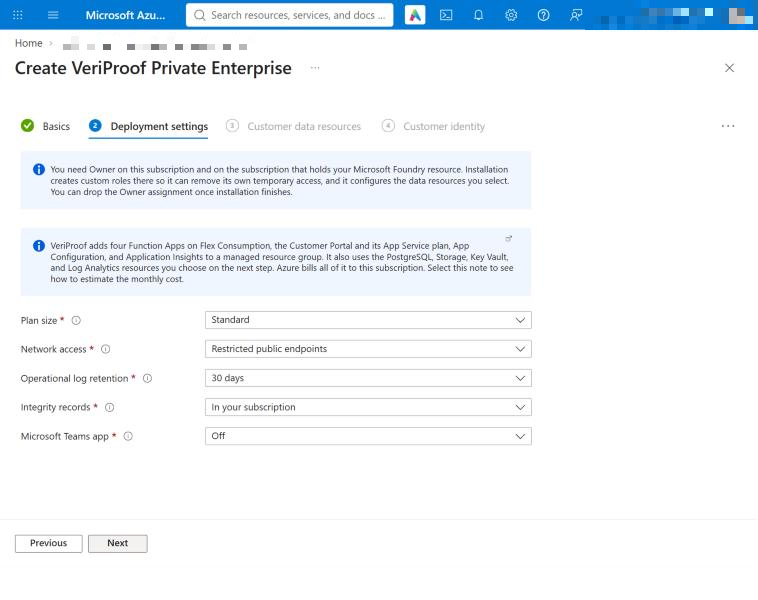
Deployment settings
The defaults suit most installations. Choose the same plan size you gave the prepare script. Operational log retention must not exceed what your Log Analytics workspace keeps, which is 30 days unless you chose more when preparing.
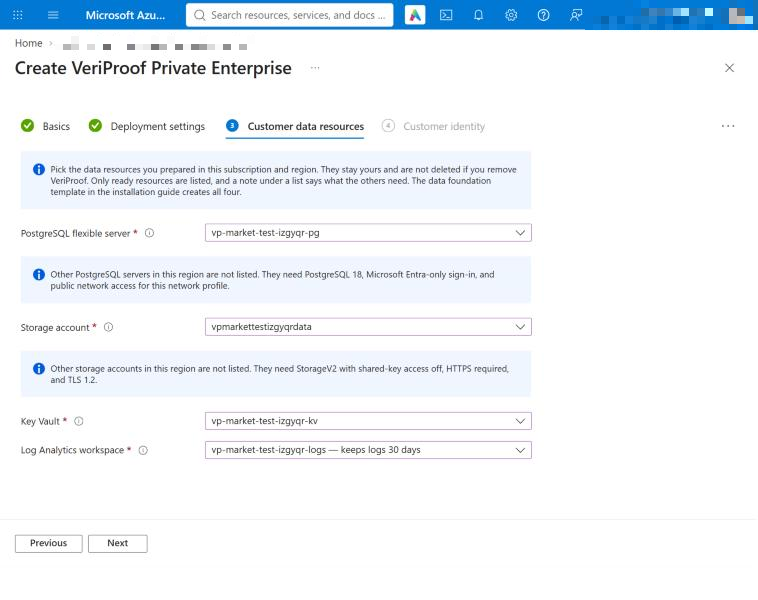
Customer data resources
Choose the resources the prepare script listed, including the Azure SQL Ledger server. Only resources that meet VeriProof’s requirements appear, and a note under a list says what the others need. VeriProof finds the ledger’s digest storage and administrator identity from the server you choose.
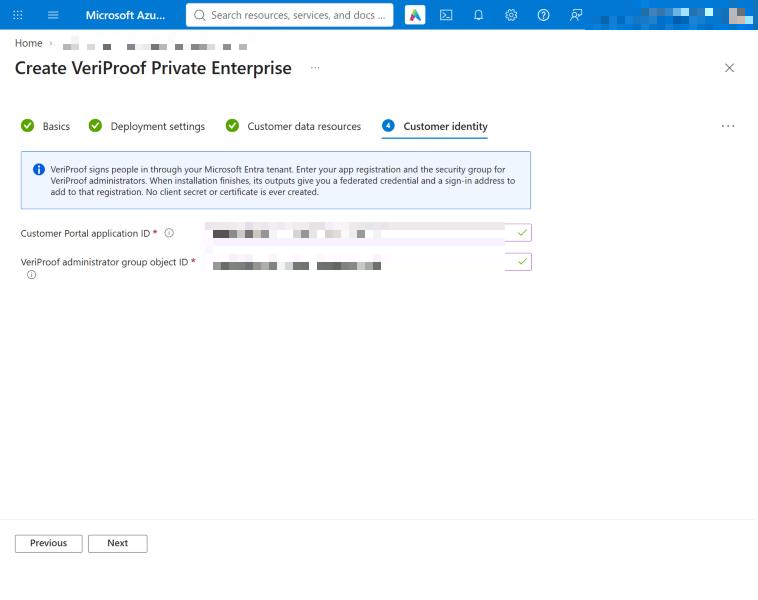
Customer identity
Enter the application ID and administrator group object ID the prepare script printed, then choose its sign-in identity, named <prefix>-sso-broker-id.
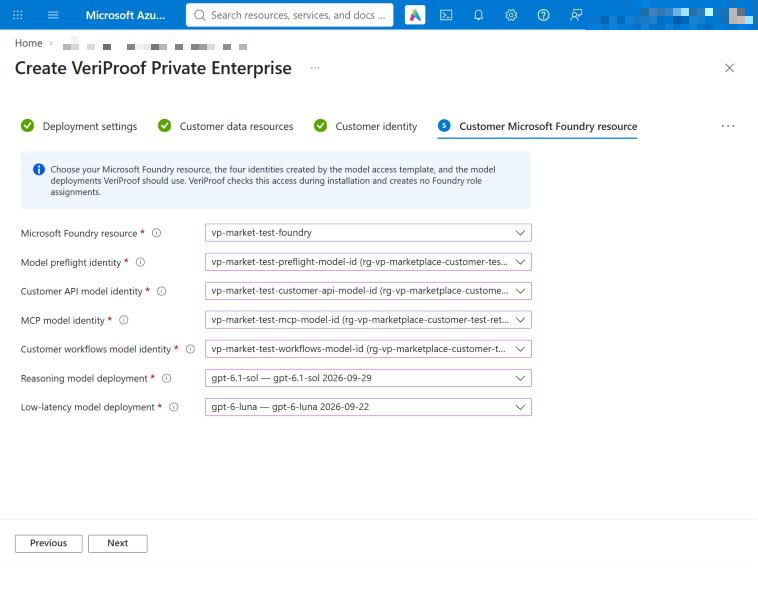
Customer Microsoft Foundry resource
Choose your Foundry resource, the four <prefix>-…-model-id identities, and your two model deployments. Each identity list shows only the identity made for that purpose, and only deployments of supported models are listed.
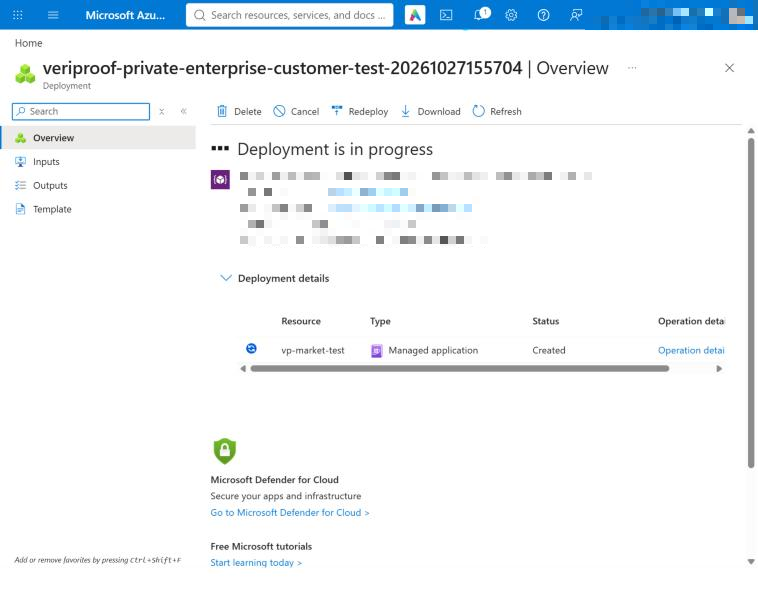
Review the summary and select Create. Installation takes 35 to 45 minutes. It checks your resources and model access first, so a problem with them shows up within the first few minutes. The deployment page shows progress; the managed application stays in progress until every step finishes.
Finish sign-in and open VeriProof
When installation completes, open the managed application in the Azure portal and select Parameters and Outputs. Copy the signInSetupCommand value and run it in Cloud Shell. It adds this installation’s sign-in and sign-out addresses to your app registration, so it needs an owner of the registration: whoever ran the prepare script’s sign-in part, or the person named with -AdditionalApplicationOwner.
Open portalUrl and select Sign in with Microsoft. The first member of the administrators group to sign in becomes the Customer Administrator.
The preparation script adds whoever runs its sign-in step, plus anyone named with -InitialAdministrator, to that group. To add someone later, update the group in Microsoft Entra before they sign in. Accounts outside the group receive a message and can try another account.
Once signed in, invite the people who will use VeriProof and assign their roles.
Your PostgreSQL server now lists one more Microsoft Entra administrator, the managed identity whose name ends in -database-activation-id. VeriProof sets up the database as this identity during installation and each update, so leave it in place. Between updates it holds no Azure role assignments, and nothing else runs as it.
Installation also set up your ledger, signed in as the ledger administrator identity from the prepare step. It applied the ledger tables, let Customer Workflows add and read proofs, and checked that digests are kept as long as your evidence. The ledger administrator holds no Azure role assignments.
If installation fails
The deployment page in the Azure portal shows which step failed and why. For a summary of where installation stopped, who needs to act, and what to do next, run the status script. It reads the release it should expect from the deployment itself:
foreach ($file in 'Get-PrivateEnterpriseInstallationStatus.ps1', 'installation-state-contract.json', 'foundry-operational-health-contract.json') {
  Invoke-WebRequest "$release/$file" -OutFile $file
}
$managed = "<managed-resource-group>"; $name = "<application-name>"
$p = az deployment group show -g $managed -n $name --query properties.parameters | ConvertFrom-Json
./Get-PrivateEnterpriseInstallationStatus.ps1 -SubscriptionId (az account show --query id -o tsv) `
  -ResourceGroup $managed -DeploymentName $name `
  -ExpectedReleaseId $p.releaseId.value -ExpectedArtifactManifestSha256 $p.artifactManifestSha256.value `
  -OutputPath ./installation-status.json
Read installationStatus for the failure category, responsible person (nextOwner), and recovery step (safeRetryAction). Follow that step before deleting and recreating the failed managed application.
Your data resources, identities, and model deployments stay in place. Database setup resumes where it stopped.
When recreating the application, keep the new managed resource group name suggested by the portal. Azure reserves a deleted App Configuration store’s name for seven days, so reusing the old group name can block installation.
If the failed step is private-enterprise-customer-portal and Azure reports no available instances or not enough worker capacity, Azure has run short of that App Service size in the region and is adding more, so try again later. If you can’t wait, the Enterprise plan size uses a larger App Service size, which costs more in Azure.
If you need help, contact VeriProof support with the installation status output. Don’t send passwords, secrets, or keys; VeriProof never needs them.
Remove VeriProof
Deleting the managed application removes VeriProof’s apps and everything in its managed resource group. Everything the prepare script created stays: your data resources, the model and sign-in identities and their access, and the app registration.
Run the cleanup script before deleting the managed application. Installation grants live on your resources, so deleting the application alone leaves those permissions in place.
The script checks and removes the recorded installation grants, then confirms their removal. It preserves the model identities’ Foundry access for reinstallation.
It also checks the database activation identity, which installation made a PostgreSQL administrator. Removal stops if that would leave the server without another Microsoft Entra administrator.
-
Sign in again with
az loginas an Owner of the subscription. -
Download the script and save the installation record from the deployment:
$release = "https://releases.veriproof.app/private-enterprise/releases/<release-id>/installation" Invoke-WebRequest "$release/Remove-PrivateEnterpriseExternalAccess.ps1" -OutFile Remove-PrivateEnterpriseExternalAccess.ps1 $managed = "<managed-resource-group>"; $name = "<application-name>" az deployment group show -g $managed -n $name --query properties.outputs.installationEvidence.value > installation-evidence.json -
Preview the cleanup with
-WhatIf, then run the same command without it. Each run takes a few minutes:./Remove-PrivateEnterpriseExternalAccess.ps1 -InstallationEvidencePath ./installation-evidence.json ` -Confirmation "REVOKE $name EXTERNAL ACCESS" -RecentReauthenticationConfirmed ` -EvidencePath ./external-access-cleanup.json -WhatIf -
When
external-access-cleanup.jsonshows"readyForManagedApplicationDelete": true, delete the managed application in the Azure portal. Keep the cleanup file with your records. To install VeriProof again later, create it with the same choices and release. It reconnects to your data, so your organization, users, and records are as you left them. Run the new installation’ssignInSetupCommandbefore anyone signs in, because the new apps have new addresses. Use a new managed resource group name, for the same seven-day reason as above. To move to a newer release, reinstall the one you removed and then update.
Deleting the managed application also removes everything VeriProof created there, including the ledger’s private network, private endpoint, outbound gateway and its public IP, and private DNS zone.
If you won’t install again, you can delete everything else:
-
Add
-RevokeModelAccesswhen you run the cleanup script. It also removes the model identities’ access to your Foundry resource, which the prepare script granted. -
Delete your data resources with the destruction script. It deletes the PostgreSQL server, Storage account, Key Vault (soft-deleted, not purged), Log Analytics workspace, Azure SQL Ledger with its database, digest Storage account, and ledger administrator identity, and nothing else. It removes the unlocked retention policies first. If you locked them with
-LockEvidencePolicy, it deletes nothing and tells you which container is locked and the earliest date it can be removed.foreach ($file in 'Export-PrivateEnterpriseDestructionInventory.ps1', 'Remove-PrivateEnterpriseRetainedResources.ps1', 'MarketplaceRetainedResourceDestruction.ps1') { Invoke-WebRequest "$release/$file" -OutFile $file } $app = az managedapp show -g <application-resource-group> -n $name --query id -o tsv ./Export-PrivateEnterpriseDestructionInventory.ps1 -InstallationEvidencePath ./installation-evidence.json ` -ManagedApplicationResourceId $app -OutputPath ./destruction-inventory.json ./Remove-PrivateEnterpriseRetainedResources.ps1 -InventoryPath ./destruction-inventory.json -EvidencePath ./destruction-plan.jsonRun the export before you delete the managed application, because it needs its ID. Then check the plan, and after the application is deleted run the second command again with
-Apply -RecentReauthenticationConfirmed -RetentionActionsConfirmedand therequiredConfirmationphrase from the inventory as-Confirmation. -
Delete the five identities in your prepare resource group (
<prefix>-…-model-idand<prefix>-sso-broker-id) and the app registration. -
Delete the two custom roles installation created on your Storage resource group,
VeriProof session blob tags - …andVeriProof retained evidence immutability - …. Nothing is assigned to them after cleanup.
Next steps
- Use your own domain for the portal, API, and MCP addresses.
- Add people and assign roles.